Creating knots with Rope Simulations
Tools Used
All listed tools, procedural and overrides can be found in Uniform's gallery

Simulation

Pin Simulation Kernel Deformer

Rebuild Surface Process
This is how you can create knots by simulating ropes in Uniform. You can utilize the simulation component features to add self-collisions to curves and interactively create these models.
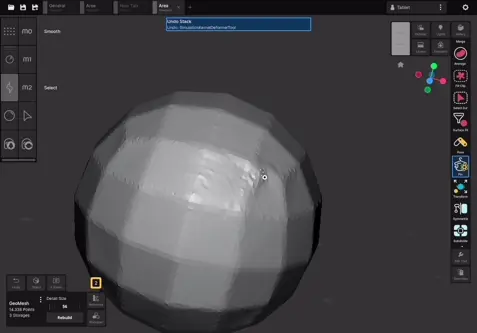
First, delete the default GeoMesh sphere. Open the Outliner and remove it from the object menu.
Next, create a new GeoCurve object. Open the Add panel, scroll down to the Procedural Curve section, and select GeoCurve. At this stage, you can reposition and adjust the initial shape of the rope using the gizmos if necessary. Once you are satisfied, select “Apply as GeoCurve.”
Now, use the Pin tool. This will lock a point of the GeoCurve under the cursor and allow you to drag it, simulating the rest of the curve as a rope. Note that, by default, this tool does not support self-collisions, making it impossible to create knots.
To enable self-collisions, open the gallery and search for the Simulation Override. This will add a list of modules to the global override list, where you can adjust the simulation settings. Select the “Add Module” option within the first module stack and add a “Self-Collision Simulation Override.”
Try using the Pin tool again. As you can see, the curve now has self-collisions enabled, allowing you to generate knots.
If the curve stretches excessively, causing artifacts or making self-collisions unreliable, you can adjust the detail size and rebuild the GeoCurve. This will create evenly spaced samples along the curve. Repeat this process regularly to maintain simulation stability.
Finally, you can use the Trim Layout tool to remove unnecessary parts of the rope. Select the Trim tool and draw a box selection to delete the unwanted portion of the curve.